Quick Answer
To automatically post WordPress blog content to social media, install a social automation plugin like Jetpack Social or Blog2Social, connect your social accounts, and enable auto-publishing features. This saves time and ensures every blog post is shared across your chosen networks instantly.
If you’ve ever spent part of your day copying blog post links, figuring out the right hashtags, and manually sharing each WordPress post to Facebook, Twitter, and LinkedIn, you’re not alone. For bloggers and business owners alike, this process can feel like running on a treadmill—lots of energy, little progress.
Social media is where your audience hangs out, and every missed or late share is a missed opportunity for reach and engagement. The good news? You can automate nearly all of this, ensuring your content goes live on all the right channels with minimal stress. In this guide, I’ll break down exactly how to automatically post WordPress blogs to social media, help you choose the right tools, and share actionable advice for a workflow that saves you time without reducing quality.
Choose the Right Plugin or Tool for WordPress Social Media Automation
First, decide which tool or plugin best fits your publishing needs and social networks.
Popular WordPress Social Auto-Posting Plugins
| Feature | Jetpack Social | Blog2Social | Social Media Auto Publish | Buffer / Hootsuite | Zapier / Automator |
|---|---|---|---|---|---|
| Supported Platforms | FB, Twitter/X, LinkedIn | Most major (incl. IG) | FB, Twitter, LinkedIn | Most major | Custom integrations |
| Message Customization | Limited | Advanced (per network) | Basic | Advanced | Depends on workflow |
| Scheduling | Limited (immediate) | Advanced (queue, plan) | No | Advanced | Workflow-based |
| Evergreen/Reshare | No | Yes | No | Limited | Yes (with setup) |
| Free Version | Yes (with limits) | Yes (with limits) | Yes | Limited | Yes (with usage caps) |
| Paid Features | $ – $$ | $ – $$ | Free | $$ | $$ (if volume is high) |
| Team/Agency Support | Jetpack Teams | Yes | No | Yes | Workflow-based |
How to choose:
– For simplicity: Jetpack Social or Social Media Auto Publish
– For deep customization or reshare: Blog2Social
– For complex workflows: Zapier, Uncanny Automator, or Buffer/Hootsuite
– For agencies: Blog2Social, Buffer, Hootsuite, or Automator tools
Install and Set Up Your Social Posting Plugin
Start by installing your chosen plugin from the WordPress dashboard. Each tool’s setup will differ slightly, but the main process is similar.
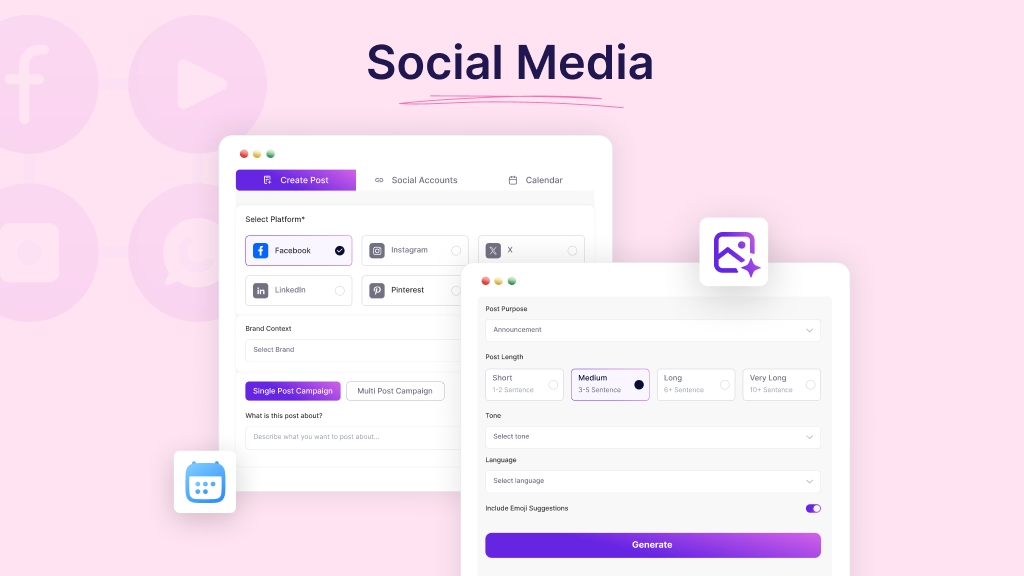
1. Install the Plugin:
- Go to Plugins → Add New in your WordPress dashboard.
- Search for your plugin (e.g., “Jetpack Social” or “Blog2Social”).
- Click Install, then Activate.
2. Connect Social Accounts:
- Open the plugin settings page.
- Click to add or connect your social networks (Facebook, Twitter/X, LinkedIn, Instagram, etc.).
- Follow on-screen prompts to authorize via OAuth (may require logging in and granting permissions).
3. Configure Auto-Publish Settings:
- Choose which post types to auto-share (posts, pages, or custom post types).
- Decide if you’ll auto-share every post or only certain categories/tags.
- Check options for customizing each post’s social message, image (e.g., featured/Open Graph), and hashtags.
4. Save and Test:
- Save your settings.
- Publish a test blog post to verify that auto-sharing works as intended.
At this point, each new WordPress post will automatically publish to your selected social media platforms with the messaging and formatting you specify. You can confirm by checking your social feeds after publishing a new post.
Automate Social Sharing Directly from the WordPress Editor
Once the plugin is set up, you can control what gets shared—right inside your post editor.
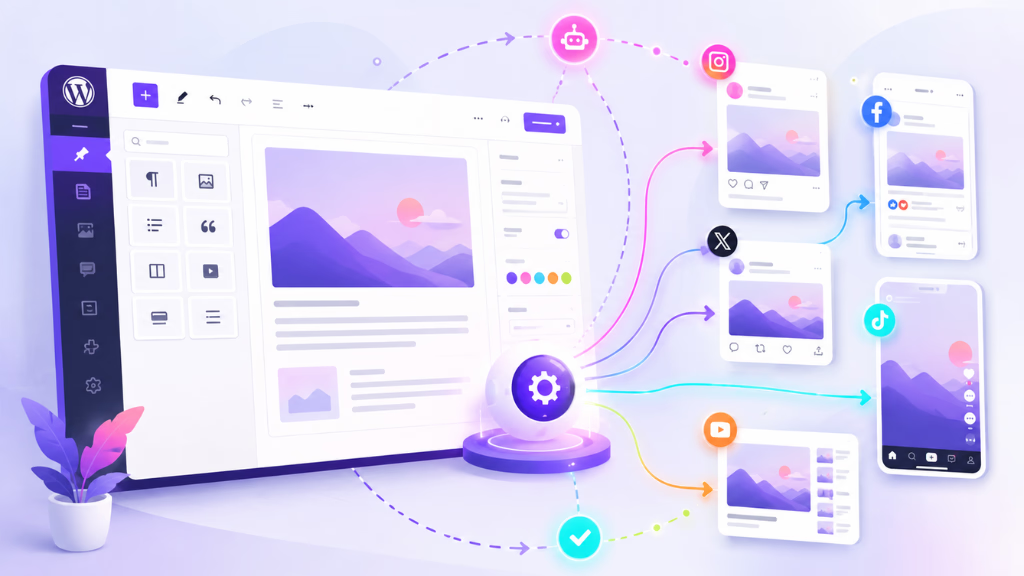
Here’s what you can do from the WordPress block editor (Gutenberg):
- Select or deselect which networks will receive your update before publishing.
- Customize your social message, tailoring each snippet (e.g., shorter for Twitter/X, visual for Facebook).
- Add relevant hashtags and mentions.
- Schedule a post for future publication—your social auto-poster will sync automatically.
- Use plugins like Blog2Social to batch-schedule or queue evergreen posts for repeated sharing.
Pro tip:
Regularly check your message previews. Default messages often look generic; adding summaries, questions, or curated hashtags can boost engagement. This is where content teams often stumble—automated isn’t always optimized.
Enhance Social Sharing with AI-Driven Content Creation
Even automated social shares benefit from thoughtful, engaging copy—this is where AI writing tools like WriteRush step in.
How AI fits into your workflow:
- After creating your blog post, use WriteRush directly within WordPress to draft compelling social messages for each network.
- Instantly generate attention-grabbing headlines, summaries, or hashtag lists tailored for Facebook, Twitter/X, LinkedIn, or Instagram (rather than generic copy-paste).
- Paste WriteRush-generated social blurbs into your plugin’s message fields to personalize each share.
- If you batch content, WriteRush helps you craft an entire month’s worth of post variations in minutes—ready for scheduling in your auto-poster.
- For teams, WriteRush enables role assignments and collaboration, keeping your brand messages consistent and polished, especially when automating at scale.
In our experience, blending automation with AI-crafted social copy makes a real difference—your posts stand out in social feeds instead of blending into the noise.
Common Mistakes When Setting Up Social Media Auto-Posting
Even the best workflows can hit speed bumps. Look out for these pitfalls:
- Forgetting API re-authentication: Social networks occasionally require reauthorization due to security or network changes. Check plugin notices and reconnect as needed to avoid sudden failures.
- Relying on default messages: Generic snippets often underperform. Customizing each message bump engagement—and is easier than most teams realize.
- Over-sharing the same post: Too frequent resharing can annoy your audience. Use evergreen queues, but moderate frequency.
- Skipping post previews: Formatting issues or missing images can make your shares look unprofessional. Always preview your posts before publishing.
- Ignoring analytics: Tracking what works (and what doesn’t) is critical. Most plugins will offer click, like, or share metrics—review these regularly.
- Not minding platform rules: Some networks, like Instagram, require business accounts or specific permissions. Always double-check integration requirements.
- Neglecting privacy and security: Only grant social account permissions to authenticated users and be aware of access scopes, especially if collaborating with a team.
From personal experience helping content teams, staying proactive on these points prevents most headaches and ensures your auto-poster keeps working seamlessly.
Conclusion
Automating your WordPress blog’s social sharing is a proven way to increase reach, save time, and improve your consistency across every platform. By combining a good automation plugin with smart, personalized social messages—crafted quickly with tools like WriteRush—you move beyond basic posting to real, scalable content marketing.
If you’re ready to simplify your workflow and create better content with less hassle, explore what WriteRush can add to your WordPress publishing process. Your audience (and your calendar) will thank you.
Frequently Asked Questions
What is the simplest way to automatically share my WordPress blog posts on social media?
Install a dedicated plugin like Jetpack Social or Blog2Social, connect your accounts, and enable auto-sharing—this creates a “set it and forget it” workflow for sharing new posts.
Which plugins support automatic posting to Facebook and LinkedIn from WordPress?
Popular plugins include Jetpack Social, Blog2Social, and Social Media Auto Publish, all with support for Facebook and LinkedIn integration.
Can I customize the social media message for each WordPress blog post?
Yes, most automation plugins allow you to tailor the title, summary, hashtags, and even images that are shared for each post and platform.
Is there a free solution for auto-publishing WordPress blogs to social media?
Yes, plugins like Jetpack Social and Social Media Auto Publish offer free tiers, though advanced features (more networks, reshare, scheduling) may require upgrades.
How do I reshare old (evergreen) posts automatically?
Plugins like Blog2Social and some Automator tools let you cycle evergreen content, scheduling older posts for regular re-sharing on social media.
Why did my social auto-publishing fail?
Common causes include expired API tokens, revoked permissions, network outages, or plugin misconfiguration. Check plugin logs and reconnect social accounts first.
Do I need a business account for Instagram or Facebook auto-publishing?
Usually yes; Instagram auto-posting requires a Business or Creator account linked to Facebook. Facebook auto-posting may also require a Page, not a personal profile.
How can agencies or teams safely collaborate on auto-sharing workflows?
Use plugins or tools that support user roles and permissions. AI tools like WriteRush can help assign, review, and edit social copy before it goes live.
What’s the difference between using a plugin and Zapier/n8n for automation?
Plugins are fast and user-friendly, while tools like Zapier or n8n allow more complex, custom automations combining multiple triggers and actions—not just limited to blogging.
Can custom post types or WooCommerce products be auto-shared to social media too?
Yes, some plugins (like Blog2Social) can include custom post types or WooCommerce products in the auto-publishing workflow; check settings to enable these.
This page was last edited on 22 June 2026, at 3:52 pm