Quick Answer
To automate content generator for WordPress with DeepSeek, connect DeepSeek to WordPress via a plugin, n8n, Make, OpenRouter, or REST API. Configure prompts, generate drafts, metadata, and images, then review content before publishing to ensure SEO safety and consistency.
Publishing consistently on WordPress sounds simple—until you’re stuck staring at a blank screen, juggling deadlines, or batch-uploading half-finished drafts at midnight. Bloggers, agencies, and businesses all want to ramp up their content volume, but the grind of planning, writing, formatting, optimizing, and posting can chew through your week.
AI models like DeepSeek promise to help, but just dropping raw AI text into your site is a recipe for trouble—generic articles, SEO headaches, and wasted time chasing edits. Automation can change everything, letting you generate well-structured drafts and SEO assets directly inside WordPress or through easy workflows.
This guide shows you how to automate WordPress content generation with DeepSeek—safely, efficiently, and without sacrificing quality. Whether you’re a writer, editor, marketer, or business owner, you’ll learn the best tools, workflows, and prompts to speed up publishing while keeping your editorial judgment front and center.
What You’ll Need Before Starting
- A running WordPress website with admin or proper editor access
- DeepSeek API or OpenRouter API key
- WordPress application password (if using REST API)
- Your preferred automation approach:
- WordPress AI plugin (easiest)
- n8n or Make.com (for automations)
- Custom API or Google Sheets pipeline (for advanced/bulk workflows)
- Access to SEO plugins (like Yoast SEO, Rank Math) if you want direct metadata automation
- A review process to check content before it goes live
Set aside 10–30 minutes for a simple plugin workflow—or up to a few hours if you choose more advanced automation.
How DeepSeek Fits into a WordPress Content Workflow
DeepSeek is an AI language model popular for its strong drafting and reasoning abilities. In WordPress workflows, you’ll mainly see two flavors:
DeepSeek R1:
Best for intelligent planning, outlines, strategy, and brief creation—great if you want your workflow to generate content plans or advanced structures.
DeepSeek V3 or Chat Mode:
Better for actual drafting, rewriting, summarizing, and general article creation. Most WordPress automation uses this for reliable long-form content.
You can use DeepSeek directly (with its API) or route through OpenRouter, which makes multiple AI models accessible under one API key. This is handy if your tool, like n8n, Make, or WriteRush, already supports OpenRouter but not DeepSeek out of the box.
Five Ways to Automate WordPress Content Generation with DeepSeek
DeepSeek can streamline WordPress content creation by helping you research topics, build SEO-friendly outlines, draft articles, optimize existing content, and prepare posts for publishing. Here are five practical ways to automate the process while maintaining content quality and consistency.
1. Use a WordPress AI Content Plugin
A plugin-based workflow is easiest for most bloggers and business owners. You install a compatible plugin, configure your DeepSeek or OpenRouter API key, and generate AI content directly in your WordPress dashboard. This approach keeps content generation, editing, and publishing in one place—great for small teams and solo creators.
For those who want to keep things simple and work inside WordPress, an AI writing plugin such as WriteRush streamlines drafting, refining, and SEO optimization without leaving your editor.
2. Use n8n with DeepSeek and WordPress
n8n is a popular self-hosted automation tool. Typical workflows include:
- Triggering from Google Sheets or a schedule
- Sending topics or briefs to DeepSeek
- Receiving and formatting AI-generated HTML articles
- Creating WordPress drafts via the REST API
- Uploading featured images
- Updating the spreadsheet with post status and URL
This approach is best if you want more control or need to integrate lots of tools.
3. Use Make.com Automation
Make.com provides no-code, drag-and-drop automations (“scenarios”). It’s ideal for users who prefer a visual builder. A workflow might:
- Watch a Google Sheet for new topics
- Send prompts to DeepSeek via OpenRouter
- Format and parse the article response
- Create the WordPress post draft
- Notify your team in Slack or email
It’s beginner-friendly but may add ongoing platform costs.
4. Use OpenRouter and a Bulk Editing Workflow
This method is popular for content teams managing high volumes. The process:
- Input a list of keywords/topics in a spreadsheet
- Generate full articles, SEO titles, meta descriptions, and tags via DeepSeek through OpenRouter
- Review and edit content in bulk
- Push drafts into WordPress using a bulk editor tool
It’s great for scale, but you need rigorous review to maintain quality.
5. Use the WordPress REST API
If you’re a developer or want full customization, use the REST API. Your script will:
- Collect prompts and topics
- Call DeepSeek or OpenRouter for content
- Map output to WordPress fields (title, body, slug, metadata, categories, featured image)
- Create posts via API with authentication
- Handle errors, duplicates, and logs
This approach is highly flexible but requires more setup and coding.
Basic DeepSeek-to-WordPress Automation Workflow
- Add Keywords/Topics: Input target topics, keywords, audience, and categories—often in a spreadsheet or content calendar.
- Create a Prompt: Use a structured prompt tailored for WordPress articles, specifying tone, format, and SEO needs.
- Send Prompt to DeepSeek: Use your plugin, automation tool, or API script to transmit the prompt.
- Generate Article Content: DeepSeek returns a full draft, including title, headings, and body.
- Generate SEO Metadata: Request SEO title, meta description, slug, and keywords separately if needed.
- Create WordPress Draft: Populate WordPress fields with AI output—status stays as “draft”.
- Assign Categories, Tags, and Featured Image: Map metadata fields, upload images, and set taxonomies.
- Review and Publish: Edit for brand voice, factual accuracy, internal links, and SEO before publishing or scheduling.
Automating each step frees you from the repetitive setup work while keeping final editorial oversight, which is crucial for SEO.
Example Prompt for Generating a WordPress Blog Post with DeepSeek
A precise prompt yields better results. Here’s a copy-paste template for full blog articles:
You are an expert blog writer and SEO content strategist.

Write a complete WordPress blog post about: [TOPIC]

Primary keyword: [KEYWORD]
Target audience: [AUDIENCE]
Search intent: [INTENT]
Tone: helpful, clear, practical, and human.

Requirements:
- Start with a short introduction.
- Use HTML formatting with <h2>, <h3>, <p>, <ul>, and <li>.
- Include practical examples.
- Include an SEO-friendly structure.
- Add a concise conclusion.
- Add 4 FAQ questions and answers.
- Avoid fluff, unsupported claims, and placeholder text.
- Return only the article body.
Test this with one article before scaling—minor tweaks make a big difference in quality.
Prompt Templates for WordPress SEO Automation
Effective prompts help automate metadata and structure for SEO. Use these templates:
SEO Title Prompt
Create 5 SEO-friendly blog post titles for the keyword: [KEYWORD].
Keep each title under 60 characters.
Make titles clear, specific, and useful without exaggeration.
Meta Description Prompt
Write a meta description for this article: [ARTICLE SUMMARY].
Keep it under 155 characters.
Include the main keyword naturally.
Use an informative and compelling tone.
FAQ Prompt
Generate 5 frequently asked questions and concise answers for a WordPress blog post about [TOPIC].
Focus on beginner questions, setup questions, automation questions, and SEO concerns.
Featured Image Prompt
Create a featured image prompt for an article about [TOPIC].
Style: clean, modern, professional WordPress blog illustration.
Avoid text inside the image.
Use a composition that represents AI automation, content creation, and WordPress publishing.
These prompts are usable directly with DeepSeek, in no-code automations like n8n or Make, or within a WordPress AI writing workflow such as WriteRush if you want to develop and refine content closer to the editor.
Plugin vs n8n vs Make vs API: Which Method Should You Choose?
| Method | Best For | Difficulty | Automation Level | Main Limitation |
|---|---|---|---|---|
| WordPress AI plugin | Bloggers, business owners | Easy | Medium | Less customizable than full automation tools |
| n8n | Technical marketers, agencies | Medium | High | Requires workflow setup |
| Make.com | No-code automation users | Medium | High | Platform cost and scenario limits |
| OpenRouter + bulk editor | Content teams | Medium | High | Requires careful review at scale |
| Custom REST API | Developers | Advanced | Very high | Requires coding and maintenance |
Plugins like WriteRush are ideal if you don’t want to deal with API nodes or complexity. For advanced or bulk workflows, go with n8n, Make, or your own API scripts.
SEO Best Practices for Automated AI Content
- Always generate drafts first: Let humans review before publishing.
- Match search intent: Structure content to answer what users actually search for, not just the main keyword.
- Add original expertise: Supplement AI drafts with screenshots, real examples, brand voice, or unique insights.
- Fact-check claims: Don’t accept all AI outputs as fact.
- Avoid duplicate or thin sections: Vary prompts; monitor for repetitive structures, FAQs, and intros.
- Use internal links and topical clusters: Link related posts for stronger SEO and better user experience.
- Optimize headings, images, and metadata: Ensure strong titles, useful meta descriptions, and alt text for accessibility and SEO.
- Implement a human review process: This is your safeguard for helpful content and search trust.
Common Mistakes to Avoid
- Auto-publishing without review: Risks SEO penalties or off-brand articles.
- Using the same prompt for all posts: Leads to repetitive, generic content.
- Creating thin content at scale: Flooding your site without value invites traffic drops.
- Ignoring internal linking: Missed opportunities for SEO and user retention.
- Forgetting metadata: Skipping meta titles/descriptions hurts rankings and clicks.
- Not monitoring API costs or rate limits: Can result in surprise bills or workflow failures.
- Exposing API keys publicly: Major security risk.
- Ignoring WordPress formatting: Leads to broken posts and messy layouts.
Build automated workflows carefully—and always keep a human eye on the final product.
Best Workflow for Bloggers, Agencies, and Business Owners
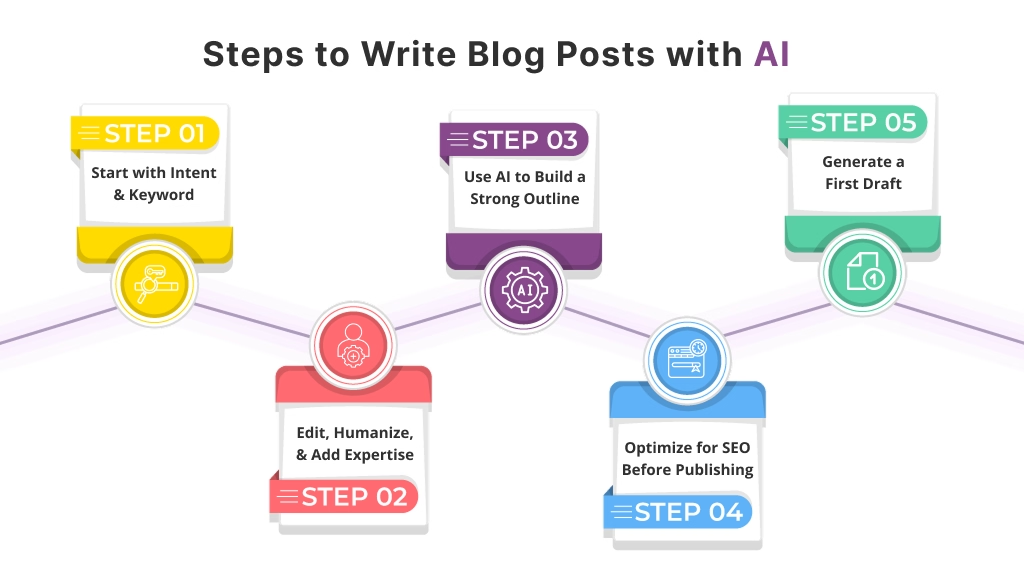
The best workflow combines keyword research, strategic outlining, AI-assisted writing, careful editing, and direct WordPress publishing. Bloggers can use it to maintain a consistent posting schedule, agencies can manage multiple client projects efficiently, and business owners can create valuable content without spending hours on every article. A structured process also helps improve content quality, maintain brand consistency, and support long-term SEO growth.
Bloggers
Use a WordPress AI plugin to create and edit drafts directly—fast, easy, and no code required.
Content Marketers
Build campaign-based workflows: generate briefs and drafts with DeepSeek, then optimize SEO and brand tone inside WordPress before publishing.
Agencies
Combine n8n or Make with spreadsheet triggers and client-specific prompt templates. Keep editorial review steps in place for every article.
Business Owners
Pick a plugin-based system or a simple automation that generates drafts (not published posts). Manual approval ensures content stays on brand.
In all these approaches, focus on quality review, search intent, and editorial standards.
Conclusion
Automating WordPress content with DeepSeek can radically reduce the time you spend on drafting, metadata, and formatting—but the smartest workflows never replace the human touch. The best results come from generating SEO-ready drafts and assets for review, refinement, and publishing—not blind auto-posting.
Choose a plugin if you want quick wins and direct editing within WordPress. Use tools like n8n or Make for bulk or advanced automation, or connect via OpenRouter for flexible API model access. Custom REST API scripts unlock the deepest control for developers and big content teams.
If you’re eager to bring AI-assisted writing into your WordPress publishing flow without wrangling code or external automation, explore how WriteRush can help you draft, refine, and optimize content—right where you publish.
FAQs
Can DeepSeek generate WordPress posts automatically?
Yes. DeepSeek can generate WordPress post drafts when connected through a plugin, n8n, Make, OpenRouter, Google Sheets workflow, or a custom API integration.
Do I need a WordPress plugin to use DeepSeek with WordPress?
No. A plugin offers the easiest start, but you can also use n8n, Make.com, OpenRouter, or REST API workflows for more advanced or bulk processes.
Is AI-generated content safe for SEO?
AI content can be SEO-safe when it’s useful, accurate, and reviewed by humans. Avoid publishing large volumes of thin, generic, or unchecked content.
Should I auto-publish DeepSeek-generated content?
Usually, no. It’s safer to create drafts, review for accuracy and originality, then publish or schedule manually.
Can DeepSeek create images for WordPress posts?
DeepSeek generates featured image prompts but does not create images itself. For images, use a separate AI art tool based on the prompt.
What’s the best DeepSeek model for blog writing?
DeepSeek R1 is strong for outlines and strategy; DeepSeek V3/chat models are typically better for drafting and rewriting blog articles.
How do I connect DeepSeek API to WordPress?
Connect via a compatible plugin, OpenRouter integration, n8n, Make.com, or a custom API workflow. You’ll need API keys and WordPress application passwords.
Can I bulk-generate WordPress posts with DeepSeek?
Yes. With Google Sheets, OpenRouter, or automation tools, you can bulk-generate posts—but always review each one for quality before publishing.
How do I handle SEO titles and meta descriptions with DeepSeek?
Use specific prompts for SEO titles, meta descriptions, slugs, and focus keywords; feed these to DeepSeek separately or as part of your main content prompt.
This page was last edited on 18 June 2026, at 6:10 pm